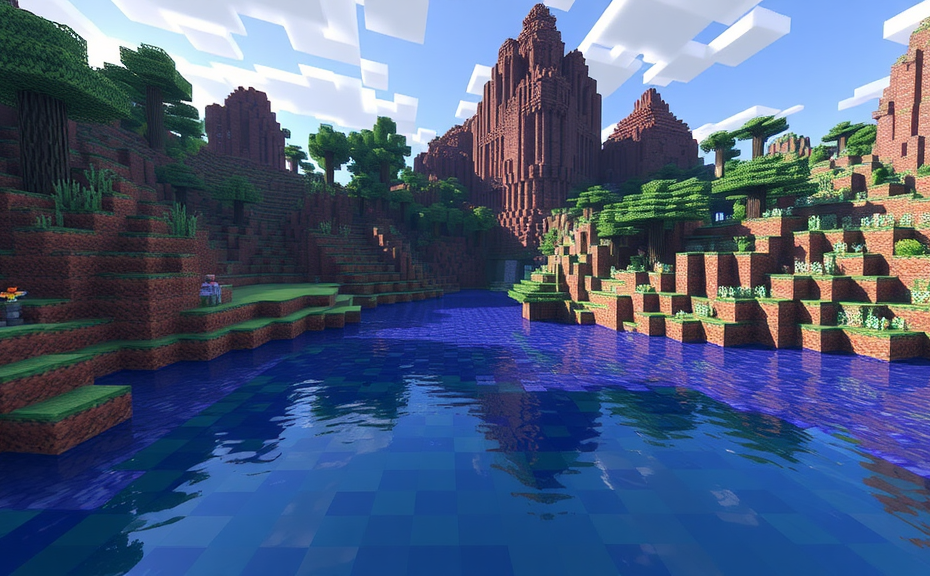
Adding Custom Shaders to Minecraft: A Comprehensive Guide
In this guide, we’ll walk you through the steps to add custom shaders to Minecraft. Shaders can enhance the visual experience of the game, making the environment look more realistic or giving it a unique artistic touch. Before you start, ensure you have a compatible version of Minecraft and the necessary resources.
To begin, you’ll need to download a shader pack. Popular options include SEUS (Sonic Ether Unbelievable Shaders), OptiFine, and Continuum. Each shader pack offers different effects, so choose one that fits your preference. Visit the official forums or websites dedicated to Minecraft mods and shader packs to find and download the shader pack you want.
Once you’ve downloaded the shader pack, locate the minecraft folder on your computer. This folder is typically found in your user directory under AppData/Roaming/.minecraft/. If you can’t see the .minecraft folder, make sure hidden files are visible in your file explorer settings.
Inside the .minecraft folder, navigate to the shaderpacks folder. If the shaderpacks folder doesn’t exist, create it manually. Once inside the shaderpacks folder, place the downloaded shader pack ZIP file there. Make sure the file extension is .zip.
Launch Minecraft and open the main menu. Click on Options, then select Shaders. You should now see a list of available shader packs. Select the one you just added. The game will apply the shader pack, and you’ll notice immediate changes in the visual appearance of the world around you.
If you encounter any issues or the shader pack doesn’t load correctly, double-check that the shader pack file is placed in the correct folder. Also, verify that your hardware meets the minimum requirements for running the shader pack. Some shader packs require high-end graphics cards to run smoothly.
For a smoother experience, consider optimizing your Minecraft settings. In the Options menu, go to Video Settings. Here, you can adjust various settings like Render Distance, Graphics, and Smooth Lighting. These adjustments can help balance performance and visual quality.
Additionally, if you’re using OptiFine, you can further customize your shader experience. OptiFine is a mod that enhances Minecraft’s graphical capabilities, including support for shaders. To install OptiFine, follow these steps:
- Download the latest version of OptiFine from the official website.
- Place the downloaded JAR file in the minecraft folder.
- Launch Minecraft and go to the Mods section.
- Enable OptiFine and restart the game.
With OptiFine enabled, you can access additional shader settings and options, providing even more control over the visual experience.
Remember, the key to a great shader experience is experimentation. Try different shader packs and settings to find the combination that works best for you. Some shader packs may consume more resources, so be mindful of your system’s capabilities. With the right setup, you can transform your Minecraft world into a visually stunning environment.
Keep your shader pack updated. Developers often release updates to fix bugs and improve compatibility. Check the shader pack’s official page or community forums regularly for updates.
By following these steps, you can easily add custom shaders to Minecraft and enjoy a more immersive gaming experience. Whether you’re looking for realism or a fantastical aesthetic, there’s a shader pack out there to suit your needs.
Choosing the Right Shader Pack for Your Minecraft Experience
Minecraft is a game that allows for endless creativity, and one way to enhance your gameplay experience is by adding shaders. Shaders can dramatically change the look and feel of the game, making the environment more realistic or giving it a stylized look. However, choosing the right shader pack can be overwhelming given the variety available. Here’s how to navigate through the options and find the perfect shader pack for your Minecraft adventure.
Before diving into the world of shader packs, it’s important to understand what shaders do. Shaders are special effects applied to the game’s graphics. They can enhance lighting, water reflections, shadows, and other visual elements, making the game world more immersive. Some shader packs focus on realism, while others aim for a cartoonish or artistic style. Knowing what you want can help narrow down your choices.
Step 1: Determine Your Hardware Capabilities
The first step in choosing a shader pack is assessing your computer’s hardware. Not all shader packs are created equal, and some require more powerful systems than others. Look for shader packs that specify system requirements. If your hardware is on the lower end, consider lighter shader packs designed for less powerful computers. This will ensure that the shader pack runs smoothly without causing lag or performance issues.
Step 2: Consider Your Gameplay Style
Your gameplay style also plays a role in choosing the right shader pack. If you enjoy exploring vast landscapes and intricate cave systems, you might prefer a shader pack that enhances the visuals of natural environments. On the other hand, if you’re into building and architecture, a shader pack that emphasizes detail and clarity might be more suitable. Think about which aspects of the game you value most and select a shader pack that complements those preferences.
Step 3: Research Popular Shader Packs
There are numerous shader packs available, each with its own unique features and fan base. Researching popular options can provide valuable insights. Websites like CurseForge, Planet Minecraft, and the Minecraft Forum often feature reviews and user feedback on various shader packs. These resources can help you understand the strengths and weaknesses of different shader packs, allowing you to make an informed decision.
Popular Shader Packs to Consider
- Fabrication Shader: Known for its high-quality lighting and realistic textures, Fabrication Shader is a good choice for players who want a more immersive experience.
- Sildurs Vibrant Shaders: This pack offers a balance between visual quality and performance, making it suitable for a wide range of hardware.
- SEUS Ultra Realistic: Ideal for players who prefer a hyper-realistic look, SEUS Ultra Realistic provides detailed shadows and realistic water effects.
- Better Together Shader: This shader pack is designed specifically for the Bedrock Edition of Minecraft, offering improved graphics across the board.
Step 4: Test Before Committing
Once you’ve narrowed down your choices, download a few shader packs and test them out. Many shader packs come with preview videos or screenshots, but seeing the effect in action is invaluable. Play around with each shader pack to see how it affects the game’s visuals and performance. This hands-on approach ensures that you pick a shader pack that meets your expectations.
Step 5: Customize Your Experience
Not all shader packs offer the same level of customization, but many allow you to tweak settings to suit your preferences. Experiment with different configurations to achieve the desired look. For example, you might want to adjust the brightness, contrast, or shadow quality. Customizing your shader pack can further enhance your Minecraft experience and make it truly unique.
Final Tips
Remember, the best shader pack is the one that enhances your enjoyment of the game without compromising performance. Don’t be afraid to try multiple shader packs until you find the perfect fit. And if you encounter any issues, reach out to the community for support. Forums and social media groups dedicated to Minecraft can be incredibly helpful resources.
Adding a shader pack to your Minecraft experience can transform the way you play. By carefully considering your hardware capabilities, gameplay style, and testing various options, you can choose a shader pack that elevates your adventures in the blocky world. Happy mining!
Troubleshooting Common Issues When Installing Shaders in Minecraft
Adding shaders to Minecraft can significantly enhance the visual experience, making the game more immersive and enjoyable. However, like with any customization, there are common issues that players might encounter during installation. This guide aims to help you troubleshoot these issues so you can get back to enjoying your enhanced Minecraft world.
Before diving into troubleshooting, ensure you have the necessary prerequisites:
- Java installed on your system
- A compatible version of Minecraft
- The correct version of the shader pack (should match your Minecraft version)
- Sufficient RAM allocated to Minecraft
Problem: Minecraft Crashes When Loading a Shader Pack
If you’re experiencing crashes when trying to load a shader pack, start by checking the compatibility of the shader pack with your Minecraft version. Sometimes, using a shader pack designed for a different version can cause instability. Verify that the shader pack you’re using is compatible with your current Minecraft version.
Additionally, ensure that your Java installation is up to date. Outdated Java versions can cause crashes. You can download the latest version of Java from the official website.
Check your computer’s specifications. Some shader packs require a high-end GPU and sufficient RAM. If your system doesn’t meet these requirements, you might face crashes. Try reducing the complexity of the shader pack or increasing the RAM allocated to Minecraft.
Problem: Low FPS or Lag When Using a Shader Pack
Low frame rate (FPS) or lag is a common issue when using shader packs. To address this, try lowering the settings within the shader pack. Many shader packs offer configuration files where you can adjust settings such as shadow resolution, water quality, and other graphical enhancements.
Another solution is to allocate more RAM to Minecraft. Open the Minecraft launcher, go to the Installations tab, select your version, click Edit, then increase the amount of RAM under the JVM Arguments section. For instance, change -Xmx1G to -Xmx3G to allocate 3GB instead of 1GB.
Problem: Shader Pack Not Showing Up in Minecraft
If the shader pack isn’t appearing in the options menu, first ensure it’s placed correctly in the shaderpacks folder inside your Minecraft directory. This folder is typically located at %appdata%\.minecraft\shaderpacks on Windows.
Restart Minecraft after placing the shader pack. Sometimes, a simple restart is enough to recognize new shader packs. If the problem persists, try deleting the options.txt file in the Minecraft directory. This file stores your preferences, and sometimes a corrupted file can prevent shader packs from showing up.
Problem: Shader Pack Causes Visual Glitches
Visual glitches, such as flickering textures or distorted blocks, can occur due to incompatibility between the shader pack and certain mods or texture packs. Disable any mods or texture packs temporarily to see if the issue resolves. If the problem goes away, you’ll need to find a shader pack that is compatible with your mod setup.
Similarly, some shader packs may have bugs or incomplete features. Check the shader pack’s description or forums for known issues and potential fixes. Updating the shader pack to the latest version can also resolve these glitches.
Problem: Shader Pack Looks Dark or Overly Bright
If the lighting in the shader pack seems off, it could be due to incorrect gamma settings. Gamma controls the overall brightness of the game. Adjust the gamma setting in the Minecraft video options. Increasing the gamma value can brighten the world, while decreasing it can darken it.
Some shader packs come with their own configuration tools or user interfaces that allow you to fine-tune lighting settings. Utilize these tools to achieve the desired look.
Additional Tips for a Smooth Experience
Keep your game updated. Regular updates often fix bugs and improve performance, which can help with shader-related issues.
Consider joining communities or forums dedicated to Minecraft and shaders. These platforms can be invaluable resources for finding solutions to specific problems and discovering new shader packs.
Remember that not every shader pack will work perfectly with every setup. Experimenting with different shader packs and configurations can lead to the best results tailored to your hardware.
By following these troubleshooting steps, you should be able to resolve most common issues related to installing and using shader packs in Minecraft. Enjoy the enhanced visuals and immersive gameplay!
Enhancing Performance While Using Shaders in Minecraft
In the vast world of Minecraft, shaders can transform the game’s graphics, making landscapes more vivid and environments more immersive. However, adding shaders can sometimes affect your game’s performance. To enhance your experience while using shaders, consider these strategies:
First, ensure your computer meets the minimum requirements for running shaders. Shaders require a decent graphics card and sufficient RAM. Check your system specifications and compare them with the recommended settings for the shader pack you wish to install. If your hardware isn’t up to par, upgrading components like your GPU or increasing your RAM can significantly boost your game’s performance.
Next, optimize your Minecraft settings. Before diving into shaders, tweak your in-game settings to their highest possible levels without causing lag. This includes adjusting render distance, view bobbing, and other graphical settings. Once you’ve set these, you can gradually introduce shader packs to see how they impact performance. Start with lighter shader packs and slowly move to more demanding ones.
Consider using a mod loader like OptiFine. OptiFine is designed to improve Minecraft’s performance and compatibility with shader packs. It allows you to fine-tune various settings, including anti-aliasing and dynamic lighting, which can greatly enhance your visual experience while maintaining a smooth gameplay experience. Installing OptiFine can reduce the strain on your system, allowing you to run more complex shader packs.
When selecting a shader pack, choose one that matches your hardware capabilities. Popular shader packs like SEUS, Sildurs, and Continuum offer different levels of complexity and visual fidelity. Lighter shader packs, such as Continuum Lite, are less resource-intensive and can be a good starting point if you’re new to using shaders. As you become more comfortable, you can experiment with heavier shader packs that provide more detailed visuals but may require more powerful hardware.
Manage your texture packs wisely. Shader packs often come with their own texture packs, which can add extra detail to blocks and entities. However, using high-resolution texture packs alongside heavy shader packs can lead to performance issues. Instead, opt for medium-resolution texture packs that strike a balance between visual quality and performance. You can also try customizing your texture packs to reduce their size and complexity.
Keep your mods organized. Using too many mods can cause conflicts and slow down your game. Ensure that only necessary mods are installed when using shaders. Some mods, like OptiFine, can help manage other mods and improve overall performance. Regularly update your mods to the latest versions to avoid compatibility issues and potential bugs.
Monitor your game’s performance. Tools like Task Manager and third-party software like Fraps can help you track your CPU and GPU usage. By monitoring these metrics, you can identify bottlenecks and adjust your settings accordingly. For instance, if your GPU usage is consistently high, you might need to lower some shader settings or switch to a less demanding shader pack.
Be patient and persistent. Enhancing performance while using shaders is a process that requires experimentation and adjustment. Don’t be afraid to try different combinations of settings and shader packs until you find the perfect balance. With time and practice, you’ll be able to enjoy stunning visuals without sacrificing gameplay speed.
To summarize, enhancing performance while using shaders in Minecraft involves optimizing your hardware, tweaking in-game settings, utilizing mod loaders like OptiFine, choosing appropriate shader packs, managing texture packs, keeping your mods organized, and monitoring your game’s performance. By following these steps, you can create a visually stunning Minecraft experience that remains smooth and enjoyable.
Remember, the key to success lies in finding the right balance between visual quality and performance. Experimentation and patience are your best allies in achieving this equilibrium. Happy crafting!
Creative Uses of Shaders to Transform Your Minecraft World
Minecraft has captivated millions with its blocky world and endless possibilities. But did you know that shaders can transform your Minecraft experience into something truly magical? Shaders add depth, realism, and stunning visual effects to the game, making your world feel more alive than ever before. In this guide, we’ll explore creative uses of shaders to enhance your Minecraft adventure.
First, let’s talk about how to install shaders. It’s a straightforward process, but it requires some preparation. You’ll need to download a shader pack from a trusted source. Once you’ve downloaded it, place the shader pack folder in the shaderpacks directory within your Minecraft folder. This step is crucial as it ensures the shader pack is recognized by the game. After placing the file, start Minecraft, open the options menu, go to Video Settings, and select the shader pack you just installed. Now, you’re ready to dive into the world of enhanced visuals!
Creating a Realistic Biome
To create a realistic biome, consider using a shader that adds water caustics and dynamic lighting. These features make the water look more like the real thing, with light dancing across the surface. Combine this with realistic foliage and weather effects, and your biomes will come alive. For example, a shader like SEUS (Sonic Ether Unbelievable Shaders) offers detailed water reflections and shadows, making each biome feel distinct and immersive.
Enhancing Day and Night Cycles
Shaders can also enhance the day and night cycles in your world. Traditional Minecraft has a simple transition between day and night, but shaders can add a layer of complexity. A shader like Chocapic13’s Ultimate Shader Pack can create more dramatic sunsets and sunrises, with rich colors and dynamic lighting changes. This makes exploring your world during different times of the day much more engaging and visually appealing.
Adding Weather Effects
Weather effects can greatly enhance the atmosphere of your Minecraft world. Shaders can simulate realistic rain, snow, and even lightning storms. For instance, the OptiFine HD shader pack includes advanced weather effects that make raindrops splatter realistically on the ground and create puddles. Snowflakes can fall softly, accumulating on surfaces in a way that feels authentic. These effects can make your world feel like a living, breathing environment.
Creating a Futuristic World
If you’re looking to create a futuristic world, shaders can help you achieve that too. Shaders like the Continuum shader pack offer neon lights and metallic textures, giving your structures a high-tech look. The lighting effects in these shaders can make your buildings glow with vibrant colors, adding a sci-fi vibe to your creations. Imagine towering skyscrapers with flickering neon signs and holographic advertisements—shaders can bring this vision to life.
Adding Dynamic Lighting
Dynamic lighting is another powerful feature of shaders. It allows light sources to cast realistic shadows and reflections. This can be particularly useful for creating atmospheric scenes. For example, if you have a torch in your hand, dynamic lighting will ensure that the light casts shadows on the walls and objects around you, making the scene feel more immersive. This effect is especially noticeable in dark caves or abandoned cities, adding a sense of depth and realism.
Customizing Skyboxes
Shaders can also be used to customize the skybox, which is the backdrop of your Minecraft world. Some shader packs offer a variety of sky textures, from realistic skies with dynamic clouds to futuristic cityscapes with neon-lit skies. For instance, the Continuum shader pack includes customizable sky textures that can change based on the time of day, making your world feel more dynamic and varied. This customization can significantly enhance the overall aesthetic of your world.
Bringing Water to Life
Water is a fundamental element in Minecraft, and shaders can breathe new life into it. Traditional Minecraft water looks flat and two-dimensional, but shaders can add depth, transparency, and even movement. The SEUS shader pack, for example, includes realistic water reflections and caustics, making the water look like it’s actually moving and reflecting light. This effect can make your lakes, rivers, and oceans feel more natural and inviting.
Enhancing Terrain Textures
Terrain textures play a crucial role in the visual appeal of your world. Shaders can enhance these textures, making them look more detailed and realistic. For instance, the Continuum shader pack includes advanced terrain shaders that add detail to grass, dirt, and stone blocks. This makes the ground feel more organic and less blocky, enhancing the overall immersion of your world.
Adding Atmospheric Fog
Atmospheric fog can add a sense of distance and depth to your world. Shaders can simulate this effect, making distant mountains appear hazy and blurred, while closer objects remain sharp. This technique is particularly effective in creating vast landscapes where you can see the horizon. The OptiFine HD shader pack includes atmospheric fog effects that can make your world feel expansive and detailed.
Creating Unique Structures
Shaders can also be used to create unique structures that stand out. For example, shaders like the Continuum shader pack offer advanced lighting effects that can make glass and metal blocks shine with vibrant colors. This can be used to create futuristic buildings or even ancient ruins with glowing runes and artifacts. The lighting effects in these shaders can make your structures look more intricate and detailed, adding a unique touch to your creations.
Adding Glow-in-the-Dark Elements
Glow-in-the-dark elements can add a mysterious and enchanting quality to your world. Shaders can simulate this effect, making certain blocks glow in the dark. For instance, the Continuum shader pack includes glow-in-the-dark textures that can be applied to various blocks, such as flowers, mushrooms, or even custom-made items. This can create a magical and otherworldly atmosphere, perfect for night-time adventures.
Using Particle Effects
Particle effects can add a dynamic and interactive element to your world. Shaders can enhance these effects, making particles like fire, smoke, and water splash look more realistic. For example, the OptiFine HD shader pack includes advanced particle effects that can make fire burn more intensely and water splash more dynamically. This can add a sense of realism and excitement to your world, making it feel more alive and engaging.
Shaders offer a wide range of creative possibilities to transform your Minecraft world. From realistic biomes and futuristic structures to enhanced lighting and dynamic effects, shaders can take your Minecraft experience to the next level. By experimenting with different shader packs and settings, you can create a world that feels both familiar and entirely new. So, why not dive in and start transforming your Minecraft world today?
Conclusion
Adding custom shaders to Minecraft can transform your gaming experience, making the world more vibrant and immersive. By choosing the right shader pack, you can customize your environment to match your preferences, whether you want realistic textures or a fantasy-themed look. However, installing shaders can sometimes lead to issues like lag or crashes, so troubleshooting common problems is essential. Optimizing your system settings helps maintain performance while enjoying these visual enhancements. creative uses of shaders can turn your Minecraft world into a stunning masterpiece, opening up endless possibilities for creativity and fun. With the right approach, you can enjoy breathtaking visuals without sacrificing gameplay quality. Embrace the power of shaders to elevate your Minecraft adventures to new heights.