Understanding Minecraft Forge: A Comprehensive Guide
Top Benefits of Using Minecraft Forge for Modding
Minecraft Forge is a powerful tool that significantly enhances the gaming experience by allowing players to install and manage mods easily. Mods, short for modifications, are custom additions to the game that can alter almost every aspect of Minecraft, from the way the world looks and behaves to the mechanics of gameplay. Here are some of the top benefits of using Minecraft Forge for modding.
Expanding Gameplay Possibilities
One of the most significant advantages of using Minecraft Forge is the vast expansion of gameplay possibilities. With Forge, you can install hundreds of mods that add new features, blocks, items, mobs, and even entire dimensions to the game. For example, the Biomes O’ Plenty mod introduces over 80 new biomes, each with unique terrain and resources, making exploration more exciting and rewarding. Similarly, the Draconic Evolution mod adds advanced technology and magical elements, transforming the core gameplay mechanics and providing a richer, more immersive experience.
Enhancing Visuals and Aesthetics
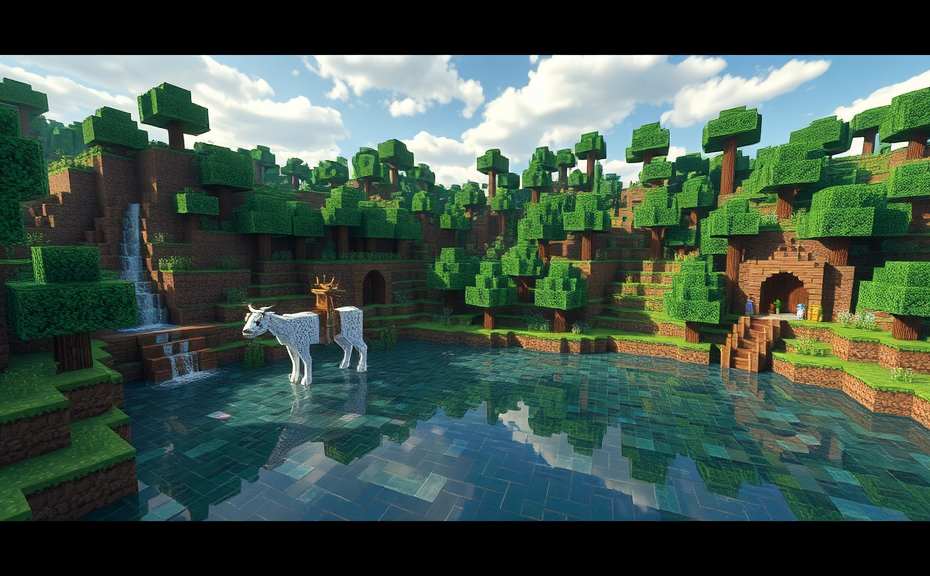
Minecraft Forge also allows for substantial visual improvements. Mods like Optifine enhance the game’s performance and graphical fidelity, introducing HD textures, dynamic lighting, and animated water effects. These enhancements can make the game look much more polished and visually appealing without compromising performance. Additionally, mods such as Serene Seasons introduce realistic seasonal changes, adding a layer of depth and realism to the environment, which can be particularly enjoyable during long play sessions.
Customizing Game Mechanics
With Minecraft Forge, you can customize nearly every aspect of the game’s mechanics. Mods like Tinkers’ Construct allow you to create custom tools and weapons with unique properties, while IndustrialCraft introduces a comprehensive system of machinery and automation. These mods not only extend the gameplay but also offer players the ability to tailor their experience to their preferences. Whether you prefer a more survival-focused experience or a tech-driven adventure, there’s a mod out there that can help you achieve it.
Community and Support
Minecraft Forge boasts a vibrant community of mod developers and enthusiasts. This community provides extensive support through forums, tutorials, and detailed documentation. If you encounter any issues or need guidance on installing or configuring a mod, chances are someone has already addressed it. Moreover, the community-driven nature of Forge ensures that new mods are constantly being developed and updated, keeping the game fresh and exciting. This level of support and constant innovation is unparalleled in the modding world.
Seamless Installation and Management
One of the standout features of Minecraft Forge is its ease of use. Unlike other modding platforms, Forge simplifies the process of installing and managing mods. It creates a dedicated folder for mods, making it easy to organize and enable/disable them as needed. Additionally, Forge integrates seamlessly with the Minecraft launcher, allowing you to switch between modded and unmodded versions of the game effortlessly. This streamlined approach makes it accessible even for those who are new to modding.
Increased Replayability
Mods significantly increase the replayability of Minecraft. By offering different gameplay styles, new objectives, and unique challenges, mods keep the game feeling fresh and engaging. For instance, mods like FTB Infinity Evolved combine multiple mods into a single package, creating a rich and diverse experience that can last for hundreds of hours. This diversity ensures that no two playthroughs are alike, making Minecraft a game that can be enjoyed repeatedly over time.
Enhanced Multiplayer Experience
Minecraft Forge also enhances the multiplayer experience by enabling mods in server environments. This means that friends can join servers running modded versions of the game, adding a whole new dimension to cooperative play. Mods like Galacticraft turn Minecraft into a space exploration game, where players can build spaceships and travel to other planets. Such features transform simple multiplayer sessions into epic adventures, fostering collaboration and competition among players.
Cost-Effective Customization
Using Minecraft Forge to install mods is often a cost-effective way to customize your gaming experience. Many mods are available for free and can be installed with just a few clicks. This accessibility allows players to experiment with various combinations of mods without spending money on additional games or expansions. The ability to mix and match mods according to personal preference ensures that you get the exact experience you want, all within a single game.
Encouraging Creativity and Learning
Modding with Minecraft Forge encourages creativity and learning. Players can experiment with coding and design by creating their own mods or tweaking existing ones. This hands-on approach to game development fosters problem-solving skills and technical understanding. Moreover, many educational mods are available that teach concepts ranging from basic programming to advanced physics, making Minecraft an excellent platform for both entertainment and education.
Minecraft Forge offers numerous benefits that enhance the overall gaming experience. From expanding gameplay possibilities and enhancing visuals to encouraging creativity and learning, Forge provides a versatile and engaging platform for modding. Its user-friendly interface, robust community support, and seamless integration make it an essential tool for anyone looking to explore the full potential of Minecraft.
Step-by-Step Installation Guide for Minecraft Forge
Minecraft Forge is a powerful modding tool that allows players to install and manage various mods in their Minecraft game. Installing Forge can seem daunting at first, but with this step-by-step guide, you’ll be able to set it up quickly and easily.
Prerequisites
Before you start, ensure you have the following:
- Minecraft installed on your computer (version compatible with the version of Forge you want to install)
- An internet connection to download Forge
- Sufficient storage space on your device
Downloading Minecraft Forge
To get started, head over to the official Minecraft Forge website. Here, you’ll find the download link for the latest version of Forge. Choose the correct version based on your Minecraft version and operating system (Windows, macOS, or Linux).
Installing Java
Forge requires Java to run. If you don’t already have Java installed, visit the Java website and download the latest version. Follow the installation instructions provided there.
Running the Installer
Once you’ve downloaded Forge, locate the installer file on your computer. It’s usually saved in your Downloads folder. Double-click the installer file to begin the setup process.
Follow the On-Screen Instructions
The Forge installer is straightforward. You’ll see a window where you can choose the installation path and other options. For most users, the default settings will suffice. Click “Install” to start the installation process.
Wait for the Installation to Complete
This step is crucial. The installer will automatically handle all necessary configurations. Depending on your system, this could take a few minutes. Once the installation is complete, you’ll see a confirmation message.
Launch Minecraft
After installing Forge, launch Minecraft from your desktop shortcut or through the Minecraft launcher. Select your profile and click “Play.” The game will now load with Forge enabled.
Installing Mods
With Forge installed, you can now install mods. Mods are typically distributed as .jar files. To install a mod:
- Locate the mod file you wish to install.
- Place the mod file in the “mods” folder inside your Minecraft directory.
- Restart Minecraft to apply the changes.
Verifying Installation
To ensure everything is working correctly, you can check the mods tab within Minecraft. If Forge and the mods are installed properly, you should see a list of active mods.
Troubleshooting Common Issues
If you encounter issues during installation, consider these troubleshooting tips:
- Check Compatibility: Ensure that the Forge version matches your Minecraft version.
- Update Java: Make sure you have the latest version of Java installed.
- Reinstall Forge: Sometimes, a fresh installation can resolve unexpected problems.
- Consult Forums: Visit the Minecraft Forge forums for additional help.
By following these steps, you should now have Minecraft Forge installed and ready to use. With Forge, you can explore a vast array of mods that enhance your gameplay experience. Enjoy building, exploring, and creating in the ever-evolving world of Minecraft!
Popular Mods for Minecraft Forge and How They Enhance Gameplay
Minecraft Forge has become a cornerstone for modding enthusiasts looking to expand their gameplay experience. It’s a platform that allows developers to create mods, which are modifications that add new features, items, and even entire dimensions to the game. These mods can significantly alter how you play Minecraft, offering fresh challenges, creative opportunities, and immersive adventures. Here’s a look at some popular mods for Minecraft Forge and how they enhance the gameplay.
One of the most beloved mods among players is Biomes O’ Plenty. This mod introduces over 80 new biomes to the game, each with its own unique flora, fauna, and environmental conditions. From the misty forests of the Lush Swampland to the eerie glow of the Frozen River, Biomes O’ Plenty adds a layer of diversity and exploration that keeps the world of Minecraft fresh and exciting. The varied environments also bring new challenges and opportunities for resource gathering and building, making each world feel like a new adventure.
Tinkers’ Construct is another must-have mod that revolutionizes the way you craft tools and weapons. Instead of the traditional system where tools have fixed durability and stats, Tinkers’ Construct lets you build custom tools from scratch. You can choose the materials, parts, and even the tool head, tailoring them to your needs. This mod adds depth to crafting and encourages experimentation, as players discover the best combinations for different tasks. Whether you’re chopping down trees or mining deep underground, your tools can be customized to match your playstyle.
For those who enjoy a bit of magic in their Minecraft world, Thaumcraft is an essential addition. This mod introduces a magical system based on the concept of “Essentia,” which are magical essences that can be gathered and manipulated. Players can create wands, golems, and even portals to other dimensions using these magical components. Thaumcraft adds a layer of complexity and mystery to the game, encouraging players to explore and experiment with magical recipes and rituals. It’s a perfect fit for those who want to dive into a more mystical side of Minecraft.
Just Enough Items (JEI) might seem like a simple utility, but it plays a crucial role in enhancing the modded experience. JEI is a mod that provides a comprehensive overview of all the items and recipes available in the game, including those from other mods. This makes it easier to find what you need, understand how things work together, and plan your crafting projects more efficiently. For players diving into a heavily modded world, JEI acts as a valuable resource guide, reducing frustration and streamlining gameplay.
If you’re looking for a mod that brings a whole new level of realism to Minecraft, Realistic Survival Mod is worth checking out. This mod aims to make survival more challenging by adding realistic elements such as hunger fatigue, dehydration, and temperature management. Players must now consider their character’s health and comfort levels, leading to a more immersive and demanding survival experience. Realistic Survival Mod forces players to think strategically about their actions and resource management, adding a new layer of depth to the game.
Another mod that adds a significant challenge and fun factor is The Aether II. This mod introduces a new dimension called the Aether, a realm of floating islands filled with light and beauty. The Aether is home to unique creatures, plants, and resources, providing a stark contrast to the regular Minecraft world. Players can explore this ethereal realm, gather rare materials, and even fight off Aether-specific enemies. The Aether II mod offers a fresh and visually stunning environment that adds excitement and variety to the game.
Lastly, Forestry is a mod that focuses on agriculture and automation, making it perfect for players who enjoy farming and managing resources. Forestry introduces a wide range of crops, bees, and automated systems for harvesting and processing resources. The beekeeping feature is particularly noteworthy, allowing players to breed and manage different types of bees to produce honey and other useful items. Forestry adds a layer of complexity to farming and resource management, making it a rewarding experience for players who love tending to their in-game farms.
These mods not only enhance the gameplay but also offer endless possibilities for creativity and exploration. Whether you’re looking to dive into a magical realm, customize your tools, or simply enjoy a more realistic survival experience, there’s a mod out there for everyone. Minecraft Forge serves as a gateway to these exciting additions, transforming the game into a limitless sandbox of adventures and discoveries.
Troubleshooting Common Issues When Using Minecraft Forge
Minecraft Forge is a popular modding platform that allows players to install and manage mods easily. However, like any software, it can sometimes encounter issues that can frustrate users. Here’s how to troubleshoot some common problems you might face when using Minecraft Forge.
Installation Problems
If you’re having trouble installing Minecraft Forge, start by ensuring you have the correct version of Forge for your Minecraft version. Visit the official Forge website to download the right installer. Also, make sure your Java installation is up to date. Sometimes, outdated Java versions can cause installation failures. If you’re still facing issues, try running the installer as an administrator. Right-click the installer and select “Run as administrator” to bypass any permission issues.
Common Fixes
- Check Java Version: Open the command prompt and type
java -version. Verify that you have the latest Java version installed. - Compatibility Mode: Right-click the installer, go to Properties, then Compatibility tab, and run the installer in compatibility mode for a previous version of Windows.
- Reinstall Java: Uninstall Java completely and then reinstall the latest version from the official site.
Crashes on Launch
One of the most common issues with Forge is that the game crashes immediately upon launch. This can be caused by a variety of factors, including corrupt mod files, incorrect Forge installation, or conflicts between mods.
Troubleshooting Steps
- Check Log Files: Look for crash reports in the
.minecraft\crash-reportsfolder. These logs can give clues about what’s causing the crash. - Disable Mods: Start Minecraft with only Forge installed. Gradually add back mods one by one to identify the problematic mod.
- Update Mods: Make sure all your mods are updated to their latest versions. Outdated mods can cause compatibility issues with Forge.
Performance Issues
Some players experience lag or performance issues when using Forge. This can often be attributed to hardware limitations or inefficient mods.
Optimization Tips
- Lower Render Distance: In the Minecraft settings, reduce the render distance to improve performance. A lower render distance means fewer chunks need to be loaded, reducing the load on your system.
- Disable Unnecessary Mods: Some mods consume more resources than others. Disable or remove mods that aren’t essential to your gameplay.
- Update Drivers: Ensure your graphics card drivers are up to date. Outdated drivers can lead to poor performance in games.
Forge Not Loading Mods
If Forge isn’t loading mods correctly, it could be due to several reasons including incorrect paths, corrupted mod files, or conflicts with other mods.
Solutions
- Check Mod Paths: Ensure that all mod files are placed in the
.minecraft\modsfolder. Incorrect placement can prevent mods from loading. - Verify Mod Integrity: Download mod files again from trusted sources. Corrupted files won’t load properly.
- Conflict Resolution: Some mods don’t play well together. Try removing conflicting mods or look for updates that fix these issues.
Forge Update Issues
Updating Forge can sometimes lead to problems, especially if the update process isn’t completed properly.
What to Do
- Backup Your World: Before updating, back up your world saves in case something goes wrong during the update process.
- Complete the Update: Make sure the update completes without interruption. Interrupted updates can leave Forge in an unstable state.
- Reinstall Forge: If the update fails, consider uninstalling and then reinstalling Forge to ensure a clean setup.
By following these troubleshooting steps, you can resolve many common issues encountered when using Minecraft Forge. Remember, patience and attention to detail are key when dealing with technical problems. Keep your software updated, and always seek help from reliable sources if needed.
Conclusion
Minecraft Forge stands out as an essential tool for anyone looking to expand their gaming experience. By offering a user-friendly interface and robust support, it simplifies the process of adding mods to your game. Whether you’re enhancing your world with new biomes, battling stronger creatures, or exploring vast new dimensions, the possibilities are endless. Remember, while the journey might seem daunting at first, the step-by-step installation guide and troubleshooting tips can help you overcome any hurdles. Embrace the creativity and community spirit that Minecraft Forge fosters, and dive into a realm where the only limit is your imagination. With each mod you install, you’ll discover a richer, more dynamic version of the game you love. So, why wait? Start your modding adventure today and transform your Minecraft experience into something truly extraordinary.