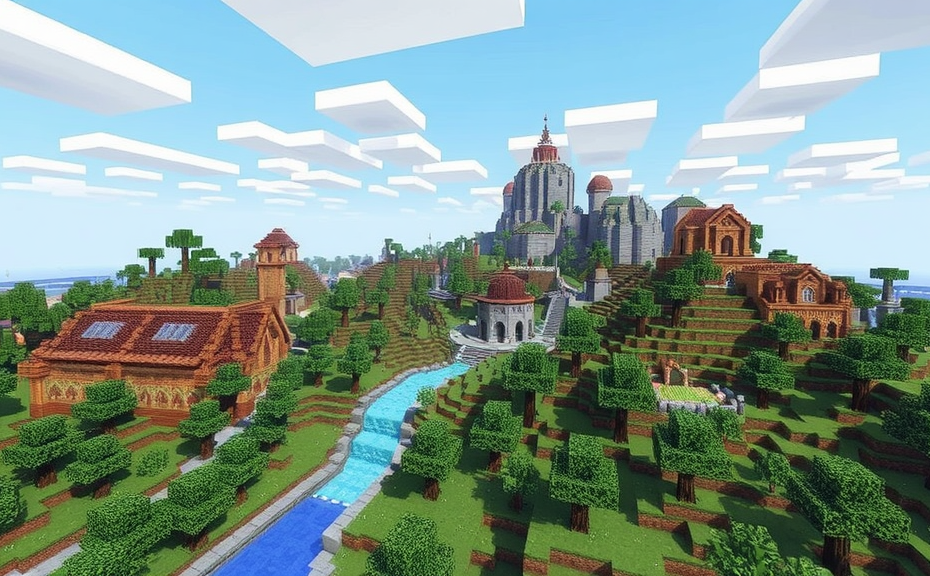
In Minecraft, teleporting can be a handy feature whether you’re exploring vast distances, setting up elaborate redstone contraptions, or simply navigating through tricky terrain. Here’s how you can teleport in Minecraft using various methods, including commands and mods.
To start, let’s explore the basic command for teleporting. If you’re playing in survival mode and need to get somewhere quickly, you can use the /teleport command. Open your chat window by pressing the T key (or whatever key you have set up) and type the command:
/teleport <player> <destination>
The <player> part refers to the player you want to teleport, which could be yourself or someone else. You can specify the player by their username or by using @p for the nearest player, @a for all players, or @s for the executing command sender. The <destination> part can be specified in several ways:
- Coordinates: You can specify exact coordinates like
0 64 0. - Named location: You can teleport to a named location using
@wfollowed by the location name, e.g.,@w home. - Relative coordinates: Use relative coordinates like
~ ~ ~to move a certain distance relative to your current position.
For example, if you want to teleport yourself to coordinates 100 64 100, you would type:
/teleport @s 100 64 100
If you prefer a more visual approach, you can use the end portal or nether portal to teleport between dimensions. To access the End, locate an end portal frame in a stronghold. Place eye of ender in each frame block until the portal activates, then enter the portal to reach the End dimension. For the Nether, find a nether fortress or build a nether portal using obsidian blocks. Light the portal with a flint and steel, then step inside to teleport to the Nether.
Another method involves using mods. Mods can significantly enhance your teleportation capabilities. One popular mod is Magic, which allows you to cast spells for teleportation. Install the mod using a mod loader like Forge or Fabric, then configure the mod to enable spells. Once configured, you can cast a spell to teleport short distances instantly. Another mod called Teleportation lets you create custom teleportation nodes, allowing you to set destinations and teleport to them at any time.
If you’re playing in creative mode, teleporting is even simpler. You can use the /tp command, which functions similarly to /teleport. For instance, to teleport to coordinates -50 64 50, you would type:
/tp @s -50 64 50
Note that in creative mode, you don’t need to specify the player, as it defaults to the command executor.
Redstone enthusiasts can also create teleportation devices using command blocks. Set up a command block and input the desired teleportation command, such as:
/tp @p ~10 ~ ~
This command teleports the nearest player 10 blocks forward. Link this command block to a lever or button to activate the teleportation manually.
Consider using command blocks for automated teleportation. Place a command block and set it to Impulse mode. Enter the command:
/execute as @e[type=item,distance=..1] at @s run tp @s ~ ~ ~
This command teleports all items within one block of the command block back to their original location, effectively creating a teleportation loop.
By mastering these teleportation techniques, you can enhance your gameplay experience in Minecraft, making exploration and building projects more efficient and enjoyable.
In Minecraft, teleportation can be a handy feature whether you’re exploring vast worlds, managing large-scale projects, or simply trying to get around quickly. While there isn’t a built-in button labeled “Teleport,” Minecraft offers several ways to achieve this effect using commands or mods. Here’s how you can teleport in Minecraft:
Using Commands
To teleport within Minecraft, you need to enable cheats in your world settings. Once cheats are enabled, you can use the /teleport command. Open the chat window by pressing T and type the command. For example, to teleport yourself to coordinates (100, 64, 100), you would enter:
/teleport @p 100 64 100The @p stands for the player, so the game knows you want to teleport yourself. If you want to teleport another player, replace @p with their username:
/teleport Bob 100 64 100This command will move Bob to the specified coordinates.
Teleporting to Another Player
If you want to teleport to another player, you can do so by specifying their username instead of the coordinates. For instance, if you want to teleport to Alice, you would use:
/teleport @p AliceThis command will move you to Alice’s current location. It’s a quick way to meet up with friends in multiplayer games.
Teleporting to a Specific Block
You can also teleport to a specific block by specifying its coordinates. For example, if you want to teleport to a block located at (200, 64, 200), you would use:
/teleport @p 200 64 200This command ensures you end up right next to the block you’re targeting. This is particularly useful when you need to reach a specific point in your world.
Using Coordinates
Minecraft uses a coordinate system where X represents the east-west position, Y represents the vertical position, and Z represents the north-south position. Understanding these coordinates helps you pinpoint exactly where you want to go. For instance, if you are at (0, 64, 0) and want to go to (100, 64, 100), you know you are moving 100 blocks east and 100 blocks south.
Remember, the Y-coordinate is crucial for vertical positioning. If you want to teleport to a specific height, adjust the Y value accordingly. For example, to teleport to a high tower at (100, 100, 100), you would use:
/teleport @p 100 100 100This ensures you land on top of the tower.
Teleporting with Mods
If you prefer a more user-friendly approach, you can use mods to add teleportation features. Mods like “Teleportation Mod” allow you to set waypoints and teleport between them with a simple click. These mods often come with intuitive interfaces that make navigation easier.
To install a mod, you’ll need a mod loader like Forge or Fabric. Download the mod from a trusted source, place it in your mods folder, and launch Minecraft with the mod loader selected. Once installed, the teleportation options will appear in your menu.
Teleporting Safely
When using teleportation, be cautious about your surroundings. Teleporting to a dangerous location could lead to falling into lava, off a cliff, or into a pit. Always ensure you’re teleporting to a safe spot. You can use the /tp command to test a location first:
/tp @p 100 64 100If it’s safe, you can proceed with the full teleportation command. If not, adjust the coordinates and try again.
Teleportation in Minecraft can be a powerful tool for exploration and efficiency. Whether you use commands, coordinates, or mods, mastering teleportation can greatly enhance your gameplay experience. Always keep safety in mind and practice good judgment when teleporting. With these tips, you’ll be zipping around the Minecraft world in no time!
Teleporting in Minecraft can be a handy feature, especially when you want to travel long distances quickly or avoid dangerous obstacles. Whether you’re playing in survival mode or creative mode, knowing how to teleport can save you time and effort. In this guide, we’ll explore different ways to teleport in Minecraft, including commands, mods, and built-in features.
To teleport using commands, you need to enable cheats in your game world. Here’s how you can do it:
Step 1: Enable Cheats
When you create a new world, make sure to select the option to enable cheats. If you already have a world, you can still enable cheats by pausing the game and selecting “Open to LAN.” Choose the option to allow cheats, and then start the world. Once the LAN world loads, you can use commands.
Step 2: Open Chat Box
Press the T key (or whatever key is assigned to chat) to open the chat box.
Step 3: Enter Command
Type the following command to teleport to a specific location:
<code>/tp <player> <x> <y> <z></code>
Replace <player> with your username or the name of another player, and <x>, <y>, <z> with the coordinates where you want to teleport. For example, to teleport to coordinates (100, 64, 100), you would type:
<code>/tp @p 100 64 100</code>
Note: You can also use relative coordinates by adding a tilde (~) before the number. For instance, /tp ~10 ~ ~ will move you 10 blocks east from your current position.
Another useful command is /teleport, which works similarly to /tp. It’s just an alternative way to say the same thing.
If you prefer not to use commands, there are several mods available that can help you teleport more easily. Mods like “Teleportation Mod” or “Travel Mod” can add new features and buttons to your game interface, making teleportation simpler and more intuitive.
Before installing any mod, make sure to download it from a trusted source and follow the installation instructions carefully. Mods can sometimes cause issues with your game, so proceed with caution.
Besides commands and mods, Minecraft also has built-in features that can help you teleport. For example, end portals, nether portals, and command blocks can all be used to teleport within the game.
End Portals: These portals are located at the end of each stronghold and can take you to the End dimension. Once you’re in the End, you can use the exit portal to return to the Overworld.
Nether Portals: These portals allow you to travel between the Overworld and the Nether. Building a nether portal in the Overworld will transport you to a corresponding portal in the Nether. Similarly, entering a nether portal in the Nether will bring you back to the Overworld.
Command Blocks: These blocks can be used to execute commands automatically. You can set up a command block to teleport players when they interact with it. To do this, right-click the command block to open its interface, enter the teleport command, and activate it.
For example, to set up a command block to teleport players to coordinates (200, 70, 200), you would:
- Place a command block.
- Right-click it to open the command block interface.
- Type the command: /tp @p 200 70 200.
- Press the button to activate the command block.
Once activated, anyone who interacts with the command block will be teleported to the specified coordinates.
Teleporting in Minecraft offers numerous advantages, whether you’re playing solo or with friends. By mastering the use of commands, exploring mods, and utilizing built-in features like end portals and command blocks, you can enhance your gameplay experience and make your adventures in the blocky world even more exciting.
Conclusion
Teleporting in Minecraft opens up a world of possibilities, from quick travel to strategic advantages. Whether you’re using commands or mods, mastering teleportation can significantly enhance your gameplay experience. Remember, always back up your world before making any major changes, especially when experimenting with commands or new mods. With practice and patience, you’ll find teleportation becomes second nature, allowing you to explore vast landscapes, build intricate structures, and engage in thrilling battles with ease. Embrace the power of teleportation and elevate your Minecraft adventures to new heights. Share your favorite teleportation tricks with fellow players and continue to discover the endless potential this feature offers. Happy crafting and adventuring!