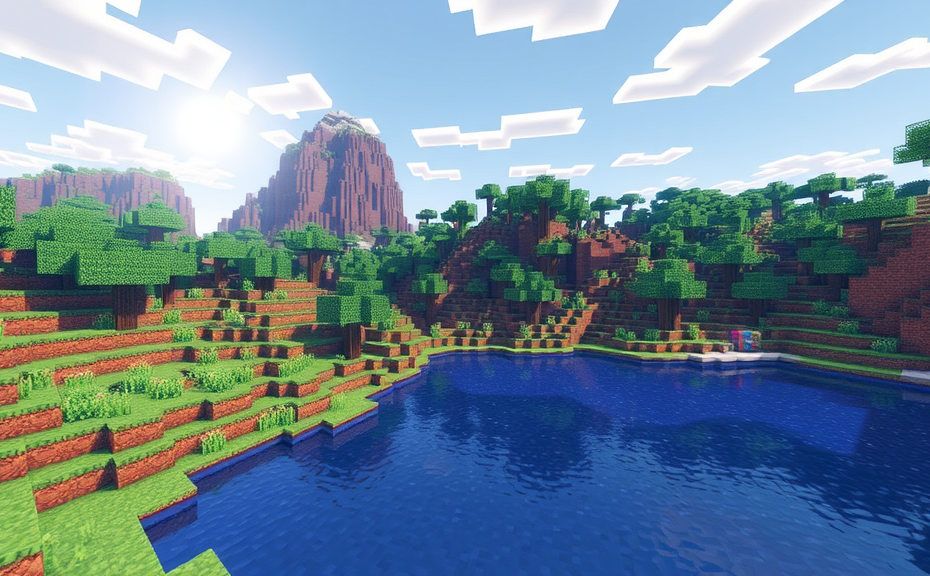
Enhancing Minecraft with Texture Packs: A Beginner’s Guide
Top 5 Most Popular Minecraft Texture Packs for Realism
Customizing Your Minecraft World: Advanced Texture Pack Techniques
Minecraft texture packs are a fantastic way to customize your gaming experience, allowing you to change the look and feel of the game’s environment and characters. Whether you want to give your world a more realistic touch or perhaps a cartoonish appearance, there’s a texture pack out there for everyone. Let’s dive into some advanced techniques to help you get the most out of these texture packs.
To start, you need to understand where to find these texture packs. Websites like CurseForge and Planet Minecraft are treasure troves of user-created content. Once you’ve found a texture pack you like, download it and place it in the correct folder. For Windows users, this is typically located in %appdata%\.minecraft\resourcepacks. Mac users can find it in ~/Library/Application Support/minecraft/resourcepacks.
Installing and Applying Texture Packs
After downloading your chosen texture pack, you’ll need to install it. Open Minecraft and navigate to the Options menu. From there, select Resource Packs. You should see your newly downloaded pack listed here. Click on it and then hit the Open Folder button to ensure it’s in the right directory. If everything is set up correctly, you can enable the texture pack by clicking the arrow next to it to move it to the Selected Resource Packs section.
Tweaking Texture Packs for Personalization
One of the best things about texture packs is how customizable they are. Many advanced texture packs come with configuration files that allow you to tweak various aspects of the textures. For example, you might want to adjust the water transparency or change the color palette to better fit your aesthetic preferences. To do this, open the configuration file (often named config.cfg or something similar) with a text editor and make the desired changes. Save the file and restart Minecraft to see your adjustments in action.
Combining Multiple Texture Packs
Sometimes, a single texture pack might not give you exactly what you’re looking for. In such cases, combining multiple texture packs can yield impressive results. Start by applying your base texture pack as usual. Then, locate additional packs that enhance specific elements, such as trees, buildings, or even mob skins. These can often be layered over the base pack. However, be cautious—some combinations might conflict or cause performance issues, so test each addition carefully.
For instance, you could use a high-resolution texture pack for the main world and a separate pack for underwater environments. This approach allows you to fine-tune every aspect of your Minecraft experience, making the game visually stunning while maintaining optimal performance.
Creating Your Own Texture Pack
If you’re feeling adventurous, you can create your own texture pack. This involves modifying existing textures or creating new ones from scratch. Tools like TexturePacker and Texture Editor can help streamline this process. Begin by selecting a base pack as a template and then modify individual textures. Pay attention to consistency in style and quality across all elements. Once you’re satisfied, compile your pack and share it with the community on platforms like CurseForge.
Performance Considerations
While texture packs can dramatically enhance the visual appeal of Minecraft, they may also impact performance. Higher resolution textures require more memory and processing power. To mitigate this, consider adjusting your game settings. Lowering the render distance, reducing particle effects, and turning off unnecessary options can help maintain smooth gameplay even with high-end texture packs.
Additionally, some texture packs are designed with performance in mind. Look for packs labeled as “low resource” or “optimized” to ensure they won’t bog down your system. These packs often sacrifice some detail for better performance, making them ideal for players with less powerful hardware.
Staying Updated with the Latest Trends
The Minecraft community is vibrant and constantly evolving. Staying updated with the latest trends in texture packs can help you discover innovative designs and techniques. Follow popular creators and forums dedicated to Minecraft modding and texture creation. Websites like Reddit, YouTube, and specialized forums are great places to find inspiration and learn new tricks.
Engaging with the community also opens doors to collaboration opportunities. You might find other creators interested in working together on a project, sharing resources, or simply giving feedback on your work. This collaborative spirit is one of the reasons why Minecraft remains so beloved among its fanbase.
Final Tips and Tricks
Remember, the key to a great texture pack lies in experimentation. Don’t be afraid to try different combinations and settings until you find the perfect balance for your playstyle. And always keep backups of your original textures, especially when making significant changes. This ensures you can revert to the default setup if anything goes wrong.
Customizing your Minecraft world with texture packs is an exciting journey filled with endless possibilities. With the right tools and techniques, you can transform your virtual realm into a masterpiece that reflects your unique vision. Happy crafting!
How Texture Packs Improve Gameplay Experience in Minecraft
Minecraft has captivated millions of players around the world with its blocky universe and endless possibilities. One way to enhance the gameplay experience is through the use of texture packs. These modifications alter the visual appearance of the game, providing a fresh look that can significantly impact how you interact with the Minecraft world.
Texture packs are essentially collections of image files that replace the default textures in Minecraft. They can change the appearance of blocks, items, mobs, and even the user interface. By updating these visuals, texture packs breathe new life into the game, making it feel like a completely different experience. Whether you’re looking to give your Minecraft world a more realistic feel or a cartoonish twist, there’s a texture pack out there to suit your preferences.
Enhancing Visual Appeal
One of the most immediate benefits of using texture packs is the enhancement of visual appeal. The default textures in Minecraft are simple and pixelated, which is part of its charm. However, for those who crave a more polished look, texture packs can transform the game into something more visually stunning. For example, HD texture packs can increase the resolution of textures, making them smoother and more detailed. This upgrade can make the environment feel more immersive and lifelike, especially when exploring vast landscapes or intricate cave systems.
Realism Over Simplicity
For players who prefer a more realistic experience, there are texture packs designed to mimic real-world materials. These packs can turn stone blocks into rough, uneven surfaces, or make water look like flowing liquid rather than blue boxes. This level of detail can make the gameplay more engaging, as players may find themselves paying closer attention to their surroundings and interactions within the game. Realistic texture packs can also add a layer of depth to building projects, allowing players to create structures that look more authentic and detailed.
Creative Freedom
On the other end of the spectrum, there are texture packs that offer a more whimsical or artistic approach. These can transform Minecraft’s blocks into colorful, cartoonish versions of themselves. This type of visual change can inspire creativity, encouraging players to think outside the box when it comes to building and designing. Cartoon-style texture packs can make the game feel like a vibrant, animated world, which can be particularly appealing to younger players or those who enjoy a more playful aesthetic.
Improved User Interface
Beyond changing the appearance of the game world, texture packs can also enhance the user interface (UI). Many texture packs include updated UI elements such as buttons, menus, and chat windows. These updates can make navigating the game easier and more intuitive. A clean, modern-looking UI can reduce clutter and help players focus more on the gameplay rather than struggling with outdated or confusing controls.
Customization Options
Another advantage of texture packs is the customization options they offer. Players can choose from a wide range of styles and themes, tailoring the game to their personal tastes. Some texture packs even allow for partial application, letting you mix and match elements from different packs to create a unique look. This level of customization ensures that every player can find a texture pack that fits their vision of an ideal Minecraft experience.
Community Involvement
The community aspect of texture packs adds another dimension to their appeal. Many texture packs are created by passionate fans who share their creations online. This fosters a sense of community among players, as they can exchange ideas, tips, and recommendations for the best texture packs. Participating in these communities can lead to discovering new and innovative texture packs that might not be widely known otherwise.
Impact on Gameplay Dynamics
While texture packs primarily affect the visual aspects of the game, they can indirectly influence gameplay dynamics. For instance, a texture pack that makes items and blocks appear more realistic can make players more aware of their surroundings, leading to better decision-making and strategic planning. Additionally, texture packs that enhance the UI can streamline gameplay mechanics, making tasks like crafting, mining, and building more efficient.
Engagement and Retention
Ultimately, texture packs can play a significant role in keeping players engaged and invested in the game. By offering a variety of visual experiences, texture packs can prevent the game from feeling stale over time. Players may find themselves returning to Minecraft more frequently to explore new worlds or experiment with different texture packs. This continuous engagement can contribute to longer play sessions and increased retention rates.
Texture packs are a powerful tool for enhancing the Minecraft experience. Whether you’re looking to improve the visual appeal, customize the UI, or simply add a new layer of creativity, there’s a texture pack out there to meet your needs. With countless options available, the possibilities for transforming your Minecraft world are virtually limitless.
Finding and Installing Minecraft Texture Packs: Step-by-Step Tutorial
Minecraft texture packs can completely transform the look and feel of your game. Whether you want to give your world a futuristic makeover, a cartoonish vibe, or even a pixelated retro style, texture packs offer endless possibilities. Here’s a step-by-step guide to help you find and install texture packs in Minecraft.
Step 1: Choose Your Texture Pack
Before diving into installation, you need to pick the right texture pack for you. There are numerous websites where you can find these packs:
- Planet Minecraft offers a wide variety of texture packs contributed by the community.
- CurseForge provides a vast collection of texture packs with detailed descriptions and reviews.
- The Minecraft Forum also has a dedicated section for texture packs.
When selecting a texture pack, consider the resolution, the style, and whether it’s compatible with your version of Minecraft.
Step 2: Download the Texture Pack
Once you’ve found the perfect texture pack, download it. Most texture packs come in a .zip format. Be sure to save the file in a location you can easily find later, like your Downloads folder.
Step 3: Locate the Minecraft Resource Pack Folder
Next, you need to find the folder where Minecraft stores its resource packs. This folder is usually located within your Minecraft installation directory. To locate it:
- Open the Minecraft Launcher.
- Click on “Installations” or “Profiles” depending on your version.
- Select the version you’re currently using.
- Look for the “Resource Packs” button or tab. This will take you to the resource pack folder.
If you can’t find the “Resource Packs” option, you can manually navigate to the folder. On Windows, it’s typically found at:
C:\Users\[YourUsername]\AppData\Roaming\.minecraft\resourcepacks
On Mac, it’s located at:
/Users/[YourUsername]/Library/Application Support/minecraft/resourcepacks
And on Linux, it’s here:
/home/[YourUsername]/.minecraft/resourcepacks
Step 4: Install the Texture Pack
Now that you know where the resource pack folder is, it’s time to install your texture pack. Simply drag and drop the downloaded .zip file into the resource pack folder you located earlier. Once the file is there, you’re ready to enable it in-game.
Step 5: Enable the Texture Pack in Minecraft
With the texture pack installed, you need to enable it within the game:
- Start Minecraft and load the world you want to apply the texture pack to.
- Go to the “Options” menu.
- Select “Resource Packs.”
- You should see your newly installed texture pack listed here.
- Select it and click “Enable.”
Once enabled, your world will instantly reflect the new look and feel of the texture pack. If you don’t see your texture pack in the list, make sure it’s correctly placed in the resource pack folder.
Step 6: Customize Your Experience
Many texture packs come with additional customization options. Some allow you to adjust the level of detail, change the UI, or even tweak certain elements of the game. Explore the settings provided by your texture pack to fine-tune your experience.
Step 7: Troubleshooting Common Issues
If you encounter issues, such as the texture pack not loading or appearing incorrectly, try these steps:
- Ensure the texture pack is compatible with your Minecraft version.
- Check if the .zip file is corrupted. Try downloading it again.
- Verify that the texture pack is placed in the correct folder.
- Restart Minecraft to ensure changes take effect.
For more advanced troubleshooting, refer to the documentation provided with the texture pack or seek help from the community forums.
Step 8: Share Your Creation
Once you’ve customized your Minecraft world with your favorite texture pack, why not share it with others? You can share screenshots or videos on platforms like YouTube, Twitter, or Reddit. Engaging with the community can inspire others to try out new texture packs too!
Texture packs are a fantastic way to personalize your Minecraft experience. With a little effort, you can transform your blocky world into a vibrant and immersive environment. Happy crafting!
Conclusion
Texture packs offer a fantastic way to customize and enhance your Minecraft experience, whether you’re a beginner looking to spruce up your game or an advanced player seeking intricate details. By choosing from top picks like those offering realism, you can transform your blocky world into a visually stunning environment. Advanced techniques allow for even more customization, giving you the power to tailor every aspect of your gameplay. These modifications not only improve the aesthetic appeal but also enrich the overall gaming experience, making each session more immersive and enjoyable. With straightforward steps to find and install these packs, there’s no reason not to dive in and explore the vast array of options available. So, why wait? Enhance your Minecraft journey today with the perfect texture pack and unlock a new level of creativity and enjoyment.