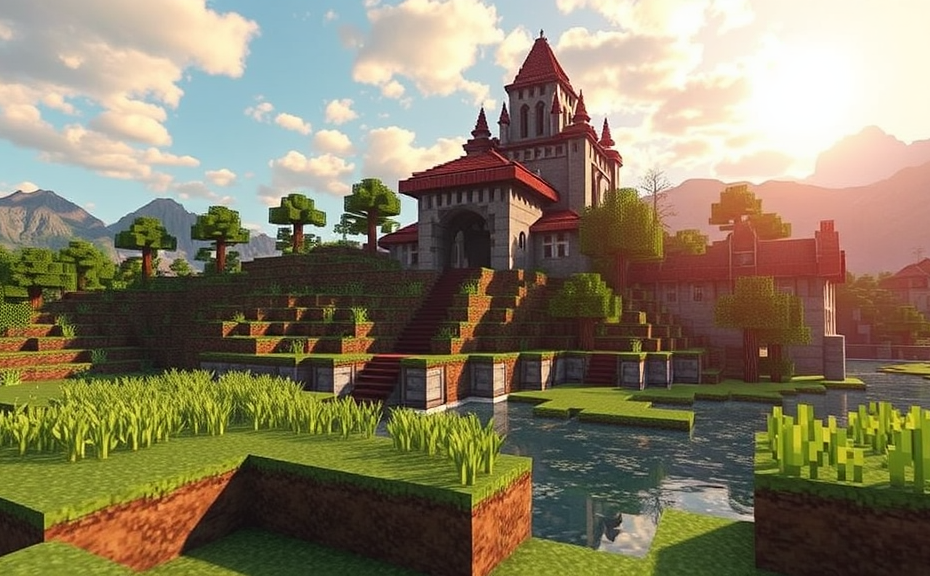
Why Does Minecraft Keep Lagging?
Minecraft is a beloved game enjoyed by millions around the world, but like any game, it can experience performance issues. One common issue players face is lag, which can disrupt gameplay and diminish the overall experience. In this guide, we’ll explore why Minecraft keeps lagging and offer practical solutions to help you minimize lag and enjoy smoother gameplay.
Understanding the causes of lag is the first step toward fixing it. Lag in Minecraft can occur due to several reasons, including hardware limitations, server issues, and game settings. By identifying the root cause, you can take targeted actions to resolve the problem.
Lag Caused by Hardware Limitations
If your computer or device isn’t powerful enough to handle Minecraft’s demands, you may experience lag. Here are some common signs and solutions:
- Your computer might be running other resource-intensive applications while playing Minecraft, causing performance issues.
- Solution: Close unnecessary programs to free up system resources.
- Your graphics card or CPU might be outdated.
- Solution: Upgrade your hardware components or consider using a less demanding version of Minecraft.
- Your RAM might be insufficient.
- Solution: Increase your RAM or reduce the number of tabs or applications open while playing Minecraft.
Lag Caused by Server Issues
Multiplayer games rely on servers to function smoothly. If the server you’re connected to is experiencing issues, you might encounter lag. Here’s how to troubleshoot:
- The server might be overloaded with too many players.
- Solution: Try connecting during off-peak hours when there are fewer players online.
- The server might be located far away from your location.
- Solution: Look for servers closer to your geographical area.
- The server might have outdated software or settings.
- Solution: Contact the server administrator to see if they can optimize the server configuration.
Lag Caused by Game Settings
Minecraft offers various settings that can affect performance. Adjusting these settings can help reduce lag:
- Graphics settings: Lowering the graphics quality can significantly reduce lag.
- Solution: Go to Options > Video Settings and adjust the render distance and graphics quality to a lower setting.
- Entity and item frame rendering: Reducing the number of entities and item frames rendered can help.
- Solution: Go to Options > Video Settings and adjust the maximum number of entities and item frames rendered.
- World type: Some world types are more demanding than others.
- Solution: If you’re playing in a superflat world, try switching to a normal world type.
Lag Caused by Mods and Add-ons
Mods and add-ons can enhance your Minecraft experience, but they can also cause lag. If you suspect a mod is causing the lag, here’s what you can do:
- Disable mods one by one to identify the problematic one.
- Solution: Start by disabling recently added mods and testing the game to see if the lag persists.
- Update mods to their latest versions.
- Solution: Check the mod developer’s website for updates and install them to ensure compatibility and performance improvements.
- Contact the mod developer for support.
- Solution: Reach out to the mod creator if you need further assistance.
Lag Caused by Network Issues
A stable internet connection is crucial for smooth multiplayer gameplay. Here are some tips to address network-related lag:
- Your internet connection might be unstable or slow.
- Solution: Check your internet speed and stability. Consider upgrading your internet plan or contacting your service provider.
- Firewall settings might be blocking Minecraft.
- Solution: Ensure that your firewall is configured to allow Minecraft traffic.
- Your router might be causing packet loss.
- Solution: Reset your router or contact your ISP for assistance.
Final Tips for Reducing Lag in Minecraft
Combining multiple solutions often yields the best results. Here are some additional tips to help minimize lag:
- Keep your game updated to the latest version.
- Close background applications to free up resources.
- Ensure your operating system and drivers are up to date.
- Consider playing in single-player mode if multiplayer lag persists.
By understanding the causes of lag and implementing the appropriate solutions, you can significantly improve your Minecraft experience. Whether it’s optimizing your hardware, adjusting game settings, or troubleshooting network issues, taking proactive steps can lead to a smoother and more enjoyable gameplay. Happy crafting!
How to Optimize Your Minecraft Settings for Smooth Gameplay
When you’re playing Minecraft and experience lag, it can be frustrating to see your game slow down or freeze. Lag can happen due to various reasons, but often it’s because your settings aren’t optimized for your system. By tweaking a few settings, you can significantly improve your gaming experience. Here’s how you can optimize your Minecraft settings for smooth gameplay.
Adjusting Video Settings: Start by lowering the video settings in Minecraft. Go to Options > Video Settings. Reduce the render distance to a lower value, such as Short or Far, depending on your preference. A shorter render distance means fewer chunks of the world need to be loaded at once, reducing the strain on your graphics card. Additionally, turn off Smooth Lighting and Clouds as these features can consume more processing power. You can also try turning off Animations like item drops and experience orbs to further lighten the load on your system.
Reducing Particle Effects: Particles add visual flair to Minecraft, but they can also cause lag. To reduce particle effects, go to Options > Particles and set the level to Minimal or None. This will significantly decrease the number of particles displayed, which can help improve performance on less powerful systems. If you still want some particles, consider setting them to Low.
Optimizing Game World: The size and complexity of your game world can affect performance. If you’re building or exploring a large world, try breaking it into smaller sections. This reduces the amount of data the game needs to load at once. Additionally, ensure that you’re not loading too many mods or plugins, as each one adds extra work for your system. If you must use mods, prioritize those that enhance performance or reduce lag.
Updating Minecraft and Java: Make sure you are running the latest version of Minecraft. Updates often include performance improvements and bug fixes that can help reduce lag. Similarly, ensure that you have the latest version of Java installed on your computer. Minecraft runs on Java, so having the most recent version can boost performance and stability.
Checking System Requirements: Verify that your computer meets the minimum system requirements for Minecraft. This includes checking your CPU, RAM, and GPU specifications. If your hardware is outdated, upgrading components like RAM or getting a better GPU can greatly improve performance. For example, adding more RAM can allow Minecraft to allocate more resources to the game, while a better GPU can handle more complex graphics and textures.
Limiting Background Processes: Close any unnecessary programs or applications running in the background. This includes web browsers, streaming services, and other games. By freeing up system resources, your computer can focus more on running Minecraft smoothly. You can use Task Manager (Windows) or Activity Monitor (Mac) to identify and close resource-heavy processes.
Using Performance Tweaks: There are several command-line tweaks you can use to improve Minecraft’s performance. For instance, you can add the following JVM arguments to the Minecraft launcher: -Xms1G -Xmx2G. These arguments set the initial and maximum memory allocation pool sizes to 1GB and 2GB, respectively. Adjust these values based on your system’s capabilities to find the optimal balance between performance and stability.
Adjusting Screen Resolution: Lowering the screen resolution can also help reduce lag. Go to Options > Video Settings > GUI Scale and select a lower scale if available. Alternatively, change your desktop resolution to a lower setting before launching Minecraft. This reduces the amount of graphical data the game needs to process and display.
Testing Different Renderers: Minecraft supports different renderers, including the default OpenGL renderer and OptiFine, which is known for its performance optimizations. Installing OptiFine can significantly improve your game’s performance by providing additional options and optimizations. However, ensure you download it from a reputable source and follow installation instructions carefully.
Maintaining Your System: Regular maintenance can keep your system running smoothly. Clean out dust from your computer case to prevent overheating, which can cause performance issues. Ensure your operating system and drivers are up to date, as updates often include performance enhancements and bug fixes.
By following these steps, you can optimize your Minecraft settings and enjoy a smoother, more enjoyable gaming experience. Remember, the key is to find a balance between visual fidelity and performance that works best for your system. Experiment with different settings until you find the sweet spot that keeps lag at bay while still allowing you to fully enjoy the game.
Troubleshooting Common Causes of Lag in Minecraft
Minecraft can sometimes feel like a never-ending adventure, but when it starts lagging, it can really dampen the experience. Lag can make your game slow down, causing delays between actions and making it hard to enjoy the world you’ve created. But don’t worry; there are several ways to troubleshoot and fix these issues.
First, let’s talk about what causes lag in Minecraft. One common reason is the hardware of your computer or device. If your device isn’t powerful enough to handle the game, you might see a lot of lag. Make sure your graphics card, processor, and RAM meet the minimum requirements for running Minecraft smoothly. You can find these details on the official Minecraft website.
Another factor could be the version of Minecraft you’re playing. Sometimes, bugs in newer versions can cause lag. It’s a good idea to check for updates and ensure you’re running the latest version. Conversely, some players find that older versions run more smoothly. If you’re experiencing lag, consider switching to a stable previous version until the developers iron out the bugs.
Your internet connection can also play a big role in lag, especially if you’re playing multiplayer. A weak or unstable Wi-Fi connection can lead to lag, so try connecting your device directly to the router with an Ethernet cable. This often provides a more stable and faster connection than Wi-Fi.
Server issues can be another culprit. If you’re playing on a server, it might be experiencing high traffic or technical problems. Try switching to a different server or waiting until the server load decreases. You can also reach out to the server administrators for help if the issue persists.
Modding is a popular aspect of Minecraft, but mods can sometimes cause lag. If you’ve installed mods, try disabling them one by one to see if any are causing the problem. Some mods may require additional resources or conflict with each other, leading to lag. Keeping your mods updated and compatible with your version of Minecraft can also help reduce lag.
Graphics settings can significantly impact performance. If your game is lagging, try lowering the graphics settings. Reducing the render distance, turning off fancy graphics, and adjusting the view distance can help improve performance. These changes can make a noticeable difference, especially on lower-end devices.
World size can also contribute to lag. Larger worlds with more chunks loaded at once can strain your device’s resources. Consider creating smaller worlds or reducing the number of chunks loaded around your character. This can be done by changing the render distance in your game settings.
Background applications can also drain your device’s resources, causing lag. Close any unnecessary programs or tabs while playing Minecraft. This includes web browsers, video streaming services, and other games running in the background. By freeing up system resources, you can give Minecraft more power to run smoothly.
If you’re still experiencing lag, it might be time to look at your device’s settings. Adjusting your device’s power settings can help. Setting your device to a high-performance mode can allocate more resources to Minecraft, reducing lag. However, be aware that this might drain your battery faster.
If none of these solutions work, it might be worth considering upgrading your device. Investing in a better graphics card, more RAM, or a faster processor can greatly enhance your gaming experience. Upgrading can be a significant step, but it can make a huge difference in how well Minecraft runs.
Remember, troubleshooting lag in Minecraft is about finding the right balance between your device’s capabilities and the game’s demands. By addressing these common causes, you can enjoy a smoother, more immersive gameplay experience.
The Impact of Server Issues on Minecraft Performance
Minecraft players often experience frustrating lags that can disrupt gameplay and diminish enjoyment. One significant factor contributing to these issues is server performance. Understanding how server problems affect Minecraft can help you troubleshoot and enhance your gaming experience.
When you play Minecraft online, your game connects to a server. This server manages the world data, player interactions, and other crucial elements of the game. If the server is experiencing high traffic or is poorly configured, it can lead to noticeable lag. Lag in this context refers to delays in the game’s response, which can manifest as slow updates, stuttering movements, or even complete freezes.
To diagnose server-related lag, start by checking the server’s status. Many servers provide real-time monitoring tools or status pages where you can see if there are known issues. You can also ask the server administrator for more detailed information. If the server is indeed overloaded, consider playing during off-peak hours when fewer players are online. Alternatively, look for less popular servers with better performance.
Server configurations play a critical role in performance. A well-tuned server can handle more players and maintain smooth gameplay. Key aspects include memory allocation, CPU usage, and network bandwidth. For instance, if a server has insufficient RAM, it may struggle to process all the data needed to keep the game running smoothly. Similarly, if the CPU is underpowered or maxed out, it can cause delays as it tries to manage too many tasks at once.
Network conditions can also impact server performance. High latency, packet loss, and low bandwidth can all contribute to lag. If you’re experiencing lag, try pinging the server to measure the latency. A high ping indicates a delay in data transmission, which can cause lag. Additionally, ensure that your internet connection is stable and fast enough to support online gaming.
Optimizing your own setup can also mitigate some server-induced lag. Make sure your device meets the minimum requirements for running Minecraft smoothly. Close any unnecessary applications to free up system resources. Also, update your graphics drivers and Minecraft itself to the latest versions, as updates often include performance improvements.
Another common issue is the distance between you and the server. The farther away you are from the server, the longer it takes for data to travel back and forth, leading to increased lag. If possible, choose a server located closer to your geographical location to reduce latency.
Some players find that using a dedicated hosting service can significantly improve their Minecraft experience. Dedicated servers offer more control over settings and configurations, allowing for better optimization. They often come with higher performance guarantees, reducing the likelihood of lag due to server overload.
If you’re hosting your own server, there are several steps you can take to minimize lag. First, ensure your hardware is powerful enough to handle the number of players and the complexity of the world. Allocate sufficient resources to the server software, including RAM and CPU power. Regularly monitor the server’s performance and adjust settings as necessary to maintain optimal conditions.
Consider implementing plugins or mods that can help optimize performance. Some plugins can automatically manage player counts, limit the number of entities, or optimize chunk loading. These tools can help reduce the load on the server and improve overall performance.
Communicate with the server community. Many players face similar issues, and sharing tips and solutions can benefit everyone. Engage in forums or Discord channels dedicated to the server or the game. Sometimes, collective efforts can lead to better server management and improved performance.
Server issues can significantly impact Minecraft performance. By understanding the factors contributing to lag and taking proactive measures, you can enhance your gaming experience and enjoy a smoother, more enjoyable gameplay environment.
Enhancing Minecraft Experience: Hardware Upgrades for Better Performance
When you notice Minecraft lagging, it can be frustrating, especially when you’re in the middle of building an impressive structure or battling hostile mobs. Lag in Minecraft can stem from various factors, including hardware limitations and software issues. By understanding these factors and making appropriate adjustments, you can enhance your gameplay experience significantly. Let’s dive into how you can optimize your system to ensure smooth performance.
Understanding the Causes of Lag
Lag in Minecraft can occur due to several reasons. One common cause is insufficient hardware capabilities. If your computer or gaming device doesn’t meet the minimum requirements, it might struggle to render the game smoothly. Another factor could be the settings within the game itself. High graphics settings, such as fancy graphics, smooth lighting, and particles, can strain your system’s resources. Additionally, having too many mods installed can also contribute to lag, as each mod requires additional processing power.
Checking Your System Requirements
To start, it’s crucial to ensure that your hardware meets Minecraft’s recommended specifications. For optimal performance, you should have at least:
- A processor with 2 GHz clock speed or higher
- At least 4 GB of RAM for Windows and macOS, and 2 GB for Linux
- A dedicated GPU with at least 512 MB of VRAM
- At least 1 GB of storage space for the game files
If your system falls short of these requirements, upgrading your hardware components can greatly improve your gameplay experience.
Optimizing In-Game Settings
Even if your hardware meets the requirements, tweaking the in-game settings can help reduce lag. Here are some tips to optimize your Minecraft settings:
- Reduce Graphics Settings: Lowering the graphics settings can significantly reduce the load on your GPU. Try setting the graphics quality to Fast or Fastest instead of Fancy.
- Disable Unnecessary Features: Turning off features like smooth lighting, clouds, and particles can help decrease the workload on your system.
- Limit View Distance: Reducing the view distance can help minimize the amount of terrain your computer needs to render at any given time.
Updating Drivers and Software
Making sure that your drivers and software are up to date can also prevent lag. Outdated drivers can cause compatibility issues and slow down your system. Ensure that your graphics card drivers, operating system, and Java Runtime Environment (JRE) are updated to their latest versions.
Reducing Background Processes
Having too many background processes running can consume valuable resources needed by Minecraft. Close any unnecessary applications and background programs before launching the game. This includes web browsers, video players, and other resource-intensive software.
Upgrading Hardware Components
If your system still lags despite optimizing settings and updating software, consider upgrading your hardware components:
- Upgrade Your RAM: Increasing your RAM can help your system handle more data simultaneously, reducing lag.
- Get a Better GPU: A dedicated graphics card with more VRAM can significantly enhance Minecraft’s performance, especially when running on higher settings.
- Use SSD Storage: Switching from HDD to SSD can drastically reduce loading times and improve overall performance.
- Consider Overclocking: If you’re comfortable with it, overclocking your CPU and GPU can give you a boost in performance. However, this comes with risks and should be done carefully.
Using Mods Wisely
While mods can add exciting new elements to your Minecraft experience, they can also introduce lag. If you notice lag after installing a new mod, try disabling it or looking for alternative versions that are optimized for better performance.
Monitoring Performance
Regularly monitoring your system’s performance can help identify the root causes of lag. Tools like MSI Afterburner or HWMonitor can provide real-time data on your CPU, GPU, and memory usage, helping you pinpoint where improvements are needed.
Final Thoughts
By addressing hardware limitations and optimizing both in-game and system settings, you can significantly reduce lag in Minecraft. Start with checking your system requirements and updating your software, then move on to upgrading your hardware if necessary. Remember, every small improvement can add up to a much smoother and more enjoyable gaming experience.
Conclusion
Mastering the art of reducing lag in Minecraft involves understanding its causes and applying effective solutions. By optimizing your game settings, troubleshooting common issues, addressing server problems, and upgrading your hardware, you can significantly enhance your gaming experience. Remember, the key lies in balancing performance and visual quality to ensure smooth gameplay. Whether it’s tweaking render distances or switching servers, each step brings you closer to a seamless Minecraft adventure. Embrace these strategies, and you’ll find yourself immersed in a world where lag no longer hinders your creativity and enjoyment. With patience and persistence, you can turn lag into a minor inconvenience rather than a major roadblock, paving the way for endless hours of fun and exploration in the blocky universe of Minecraft.